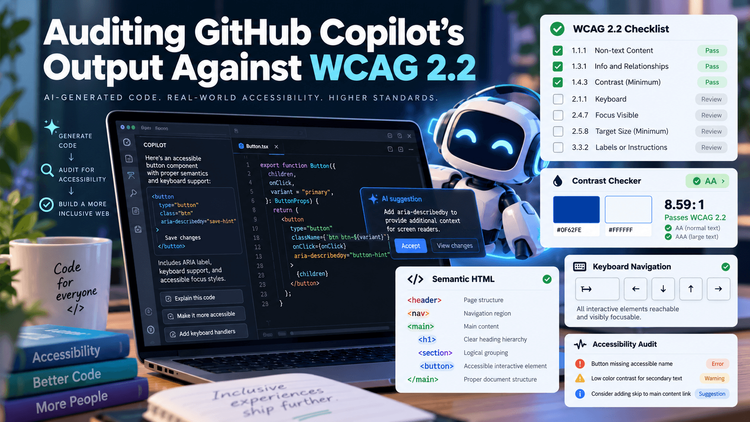

GitHub Copilot can write accessible code, but only when you ask it to, and almost never for the WCAG 2.2 criteria that matter most in modern UIs. Left to its defaults, it reproduces the same patterns it learned from millions of public repositories, and a large share of those repositories are inaccessible.
That matters because AI-generated code now ships to production every day. If a code assistant suggests a
In this article, we’ll audit Copilot’s output for five common front-end components against WCAG 2.2 Level AA. For each one, you’ll see a typical first suggestion, what fails and why, and a corrected version you can drop into your own project. We’ll finish with a practical playbook for steering Copilot toward accessible output by default.
What you’ll learn:
- Which WCAG 2.2 success criteria AI assistants most often miss
- How to set up a repeatable audit of AI-generated UI code
- Corrected, accessible versions of five everyday components
- How to use Copilot custom instructions and CI checks as accessibility guardrails
Note: Copilot’s output changes with model versions, context and prompt wording. The examples below represent common patterns rather than a fixed benchmark. Run the methodology yourself on your own codebase; that is the point of the exercise.
A Quick WCAG 2.2 Refresher
WCAG 2.2 became a W3C Recommendation in October 2023. It keeps every WCAG 2.1 success criterion except 4.1.1 Parsing, which was removed as obsolete, and adds nine new ones. Six of them are Level A or AA, which puts them in scope for most legal and procurement requirements.
| Criterion | Level | What it asks for |
|---|---|---|
| 2.4.11 Focus Not Obscured (Minimum) | AA | A focused element is not entirely hidden by sticky headers, cookie banners or other author-created content |
| 2.4.12 Focus Not Obscured (Enhanced) | AAA | No part of the focused element is hidden |
| 2.4.13 Focus Appearance | AAA | Focus indicators meet minimum size and contrast |
| 2.5.7 Dragging Movements | AA | Anything done by dragging can also be done with a single pointer, without dragging |
| 2.5.8 Target Size (Minimum) | AA | Pointer targets are at least 24 × 24 CSS pixels, or have enough spacing |
| 3.2.6 Consistent Help | A | Help mechanisms appear in the same relative order across pages |
| 3.3.7 Redundant Entry | A | Users are not asked to re-enter information they already provided in the same process |
| 3.3.8 Accessible Authentication (Minimum) | AA | Login does not require a cognitive function test, such as memorizing or transcribing, without an alternative |
| 3.3.9 Accessible Authentication (Enhanced) | AAA | Same as 3.3.8, with fewer exceptions |
Our audit targets WCAG 2.2 Level AA overall, so it covers both the long-standing criteria (1.1.1 Non-text Content, 1.3.1 Info and Relationships, 2.1.1 Keyboard, 4.1.2 Name, Role, Value) and the new AA criteria above. The new ones are especially interesting for AI assistants because they are recent. Far less public code demonstrates them, so a model trained on that code has had fewer good examples to learn from.
The Audit Methodology
A fair audit tests what developers actually do, so every component is generated twice: once with a plain, everyday prompt and once with an accessibility-aware prompt. The difference between the two is the real finding.
- Neutral prompt. Write the prompt a busy developer would write, for example
// React icon button that closes the panel. Accept Copilot’s first suggestion without edits. - Accessibility-aware prompt. Repeat with explicit intent, for example
// Accessible React icon button, WCAG 2.2 AA, closes the panel. - Automated scan. Render each component and run axe-core through
jest-axeor Playwright. - Manual testing. Check keyboard-only use, NVDA with Firefox, VoiceOver with Safari, and 200% and 400% zoom.
- Score. Mark each relevant success criterion as Pass, Partial or Fail.
Step 4 is not optional. Automated tools reliably catch only a portion of WCAG issues; focus order, focus loss, meaningful names and most of the new 2.2 criteria need a human. Here is the minimal automated harness used for each component:
import { render } from '@testing-library/react';
import { axe, toHaveNoViolations } from 'jest-axe';
import { CloseButton } from './CloseButton';

expect.extend(toHaveNoViolations);

test('CloseButton has no detectable a11y violations', async () => {
  const { container } = render(<CloseButton onClose={() => {}} />);
  const results = await axe(container, {
    runOnly: { type: 'tag', values: ['wcag2a', 'wcag2aa', 'wcag21aa', 'wcag22aa'] },
  });
  expect(results).toHaveNoViolations();
});
The wcag22aa tag enables axe’s WCAG 2.2 rules, such as its target-size check. Keep in mind that a passing axe run means “no detectable violations”, not “accessible”.
Audit 1: The Icon Button
Icon-only buttons are the single most common accessibility failure in AI-generated UI code. With a neutral prompt (// close button with X icon), a typical Copilot suggestion looks like this:
export function CloseButton({ onClose }) {
  return (
    <div className="close-btn" onClick={onClose}>
      <svg width="16" height="16" viewBox="0 0 16 16">
        <path d="M2 2L14 14M14 2L2 14" stroke="currentColor" strokeWidth="2" />
      svg>
    div>
  );
}
What fails:
- 2.1.1 Keyboard (A): a is not focusable and does not respond to Enter or Space.
- 4.1.2 Name, Role, Value (A): screen readers announce nothing useful, with no role and no name.
- 1.1.1 Non-text Content (A): the SVG has no text alternative.
- 2.5.8 Target Size (Minimum) (AA): a 16 × 16 pixel hit area is below the 24 × 24 pixel minimum.
With an accessibility-aware prompt, Copilot usually switches to a
and adds anaria-label, but it rarely fixes the target size and often leaves the SVG exposed to assistive technology. Here is the corrected version:export function CloseButton({ onClose, label = 'Close' }) { return ( <button type="button" className="icon-btn" onClick={onClose} aria-label={label}> <svg aria-hidden="true" focusable="false" width="16" height="16" viewBox="0 0 16 16"> <path d="M2 2L14 14M14 2L2 14" stroke="currentColor" strokeWidth="2" /> svg> button> ); }.icon-btn { display: inline-grid; place-items: center; min-width: 24px; min-height: 24px; padding: 4px; border: none; background: transparent; } .icon-btn:focus-visible { outline: 2px solid #1a5fb4; outline-offset: 2px; }A native
gives you focus, keyboard activation and the correct role for free.aria-hidden="true"stops the SVG from being announced twice, andfocusable="false"prevents an extra tab stop in older browsers.Audit 2: The Checkout Form
Forms reveal how well an assistant understands the relationships between elements, not just the elements themselves. The neutral prompt was
// shipping address form with validation:<form onSubmit={handleSubmit}> <input type="text" placeholder="Full name" value={name} onChange={e => setName(e.target.value)} /> <input type="text" placeholder="Email" value={email} onChange={e => setEmail(e.target.value)} /> {errors.email && <span className="error">Invalid emailspan>} <input type="text" placeholder="Postcode" value={zip} onChange={e => setZip(e.target.value)} /> <button type="submit">Continuebutton> form>What fails:
- 1.3.1 Info and Relationships (A) and 3.3.2 Labels or Instructions (A): placeholders are not labels. They disappear on input and are inconsistently announced.
- 3.3.1 Error Identification (A): the error is not programmatically tied to its field, and it is not announced when it appears.
- 1.3.5 Identify Input Purpose (AA): no
autocompleteattributes, so browsers and assistive tools cannot autofill. - 3.3.7 Redundant Entry (A): when this form is followed by a billing step, Copilot typically generates a second, empty address form instead of reusing the shipping data.
The corrected version uses a small reusable field component so labels, hints and errors are always wired together:
function Field({ id, label, error, ...inputProps }) { const errorId = `${id}-error`; return ( <div className="field"> <label htmlFor={id}>{label}label> <input id={id} aria-invalid={error ? 'true' : undefined} aria-describedby={error ? errorId : undefined} {...inputProps} /> {error && <p id={errorId} className="error">{error}p>} div> ); } export function ShippingForm({ values, errors, onChange, onSubmit }) { return ( <form onSubmit={onSubmit} noValidate> <div role="alert" aria-live="assertive" className="visually-hidden"> {Object.keys(errors).length > 0 && `${Object.keys(errors).length} fields need attention`} div> <Field id="name" label="Full name" autoComplete="name" value={values.name} onChange={onChange} error={errors.name} /> <Field id="email" label="Email" type="email" autoComplete="email" value={values.email} onChange={onChange} error={errors.email} /> <Field id="postcode" label="Postcode" autoComplete="postal-code" value={values.postcode} onChange={onChange} error={errors.postcode} /> <button type="submit">Continuebutton> form> ); }For 3.3.7 Redundant Entry, the billing step should offer the shipping data back to the user rather than asking again:
<label> <input type="checkbox" checked={sameAsShipping} onChange={e => setSameAsShipping(e.target.checked)} /> Billing address is the same as shipping address label> {!sameAsShipping && <BillingAddressFields defaults={shipping} />}Error messages should also say how to fix the problem, for example “Enter an email address like name@example.com” rather than “Invalid email”. That satisfies 3.3.3 Error Suggestion (AA), which Copilot’s generic messages rarely do.
Audit 3: The Modal Dialog
Modals are where the gap between “looks right” and “works right” is widest. The neutral prompt
// modal component with overlaytypically produces something like this:export function Modal({ isOpen, onClose, children }) { if (!isOpen) return null; return ( <div className="overlay" onClick={onClose}> <div className="modal" onClick={e => e.stopPropagation()}> <span className="close" onClick={onClose}>×span> {children} div> div> ); }What fails:
- 4.1.2 Name, Role, Value (A): no dialog role and no accessible name, so screen reader users don’t know a dialog opened.
- 2.4.3 Focus Order (A): focus stays on the trigger behind the overlay, and keyboard users can tab into the hidden page.
- 2.1.1 Keyboard (A): there is no Escape key handling, and the close control is a non-focusable
. - Focus restoration: when the modal closes, focus is lost to
instead of returning to the trigger.
With an accessibility-aware prompt, Copilot often adds
role="dialog"andaria-modal="true"and sometimes a hand-written focus trap. Hand-written traps are fragile. The most robust fix is to use the nativeelement, which handles the top layer, inertness of the background and Escape for you:import { useEffect, useRef } from 'react'; export function Modal({ isOpen, onClose, title, children }) { const dialogRef = useRef(null); const triggerRef = useRef(null); useEffect(() => { const dialog = dialogRef.current; if (!dialog) return; if (isOpen && !dialog.open) { triggerRef.current = document.activeElement; dialog.showModal(); } else if (!isOpen && dialog.open) { dialog.close(); } }, [isOpen]); const handleClose = () => { onClose(); triggerRef.current?.focus(); }; return ( <dialog ref={dialogRef} aria-labelledby="modal-title" onClose={handleClose}> <h2 id="modal-title">{title}h2> {children} <button type="button" onClick={handleClose}>Closebutton> dialog> ); }The
onCloseevent fires for both the Close button and the Escape key, so focus is always restored. If your team must support a custom modal instead, test it against the ARIA Authoring Practices Guide dialog pattern with a real screen reader before shipping.Audit 4: Sticky Headers, Small Targets and Drag-and-Drop
This audit groups three of the new WCAG 2.2 AA criteria, because they share one trait: they are about layout and interaction rather than markup, so they are almost invisible in a code suggestion.
2.4.11 Focus Not Obscured (Minimum)
Ask Copilot for
// sticky header with navand you’ll get a correct-lookingposition: stickyheader. Nothing in that suggestion is wrong on its own. The failure appears later, when a keyboard user tabs down the page and each focused link scrolls underneath the header. The fix is one line of CSS that Copilot almost never offers unprompted:.site-header { position: sticky; top: 0; height: 72px; z-index: 10; } html { scroll-padding-top: 88px; }The same applies to cookie banners and chat widgets fixed to the bottom of the viewport; use
scroll-padding-bottomfor those.2.5.8 Target Size (Minimum)
Pagination, tag chips and table row actions are frequent offenders. Copilot tends to suggest compact styles copied from dense dashboard UIs, such as
padding: 2px 6pxwith a 12px font. Set a minimum on the interactive element, not on the icon inside it:.pagination a, .chip-remove, .row-action { min-width: 24px; min-height: 24px; display: inline-flex; align-items: center; justify-content: center; }2.5.7 Dragging Movements
Ask for
// sortable list with drag and dropand Copilot will reliably produce a working HTML5 drag-and-drop or library-based list. It will almost never provide a non-dragging alternative. Users with tremors, switch devices or head pointers need one. The simplest fix is a pair of move buttons per item:function SortableItem({ item, index, total, onMove }) { return ( <li draggable onDragStart={ undefined}> <span>{item.label}span> <button type="button" onClick={() => onMove(index, index - 1)} disabled={index === 0} aria-label={`Move ${item.label} up`}>↑button> <button type="button" onClick={() => onMove(index, index + 1)} disabled={index === total - 1} aria-label={`Move ${item.label} down`}>↓button> li> ); }Pair this with a polite live region that announces “Blue sneakers moved to position 2 of 5” so screen reader users get confirmation of the change.
Audit 5: The Login Form
3.3.8 Accessible Authentication (Minimum) is the newest criterion most teams have not yet absorbed, and AI assistants reflect that. The neutral prompt
// login form with password and one-time codeoften produces something like this:<form onSubmit={login}> <input type="text" placeholder="Username" onChange={...} /> <input type="password" placeholder="Password" onPaste={e => e.preventDefault()} onChange={...} /> <div className="otp"> {[0, 1, 2, 3, 4, 5].map(i => ( <input key={i} maxLength={1} onChange={e => focusNext(i, e)} /> ))} div> <button>Sign inbutton> form>What fails:
- 3.3.8 Accessible Authentication (Minimum) (AA): blocking paste on the password field forces users to recall and retype it, which defeats password managers. That is exactly the cognitive function test the criterion prohibits.
- 1.3.5 Identify Input Purpose (AA): no
autocompletevalues, so browsers cannot fill credentials or one-time codes. - 1.3.1 and 4.1.2: six unlabeled single-character inputs announce as six blank edit fields, and the automatic focus jumping disorients screen reader users.
The corrected version is shorter, not longer:
<form onSubmit={login}> <label htmlFor="username">Email or usernamelabel> <input id="username" name="username" autoComplete="username" /> <label htmlFor="password">Passwordlabel> <input id="password" name="password" type="password" autoComplete="current-password" /> <label htmlFor="otp">6-digit code from your authenticator applabel> <input id="otp" name="otp" inputMode="numeric" autoComplete="one-time-code" pattern="[0-9]{6}" maxLength={6} /> <button type="submit">Sign inbutton> form>A single code field lets users paste the full code and lets mobile browsers offer it from SMS automatically. If your design requires segmented boxes, keep them as a visual treatment over a single real input. Better still, offer passkeys or email magic links, which remove the cognitive test entirely.
The Scorecard
Across the five components, an accessibility-aware prompt reliably fixed markup-level issues but left the new WCAG 2.2 criteria mostly unaddressed.
Component Key criteria Neutral prompt Accessibility-aware prompt Icon button 2.1.1, 4.1.2, 1.1.1, 2.5.8 Fail Partial (target size missed) Checkout form 1.3.1, 3.3.1, 1.3.5, 3.3.7 Fail Partial (redundant entry missed) Modal dialog 4.1.2, 2.4.3, 2.1.1 Fail Partial (focus restore inconsistent) Sticky header, targets, drag 2.4.11, 2.5.8, 2.5.7 Fail Fail Login form 3.3.8, 1.3.5, 4.1.2 Fail Partial (paste blocking sometimes kept) Three patterns stand out:
- Copilot mirrors its context. In a codebase full of , it suggests more of them. In a codebase with a well-built accessible component library, its suggestions improve noticeably. Your existing code is your strongest prompt.
- Intent helps markup, not behavior. Mentioning accessibility gets you labels, roles and
aria-*attributes. It does not get you focus management, live announcements or keyboard alternatives unless you name them.- WCAG 2.2 is a blind spot. Focus Not Obscured, Target Size, Dragging Movements and Accessible Authentication rarely appear unless the prompt names the criterion directly. Even then, the fix is often partial.
The verdict: AI can write accessible code, but it cannot be trusted to do so on its own. It is a fast junior developer with uneven accessibility training, and it needs the same guardrails you’d give one.
Making Copilot Write Better Code by Default
You don’t need to write perfect prompts every time. Put three layers of guardrails around the assistant instead: instructions it reads, linting at the keyboard, and tests in CI.
Layer 1: Repository custom instructions
Copilot reads a
.github/copilot-instructions.mdfile in your repository and applies it to chat and agent requests. Use it to encode your accessibility standards once, for the whole team:# Accessibility requirements (WCAG 2.2 AA) - Use native HTML elements before ARIA: <button>, <a href>, <dialog>, <label>. - Never attach click handlers to <div> or <span>. - Every form input has a visible <label> linked with htmlFor/id. Placeholders are not labels. - Add autocomplete attributes to personal-data and credential fields. - Link error messages to inputs with aria-describedby and set aria-invalid. - Icon-only buttons need aria-label; decorative SVGs get aria-hidden="true". - Interactive targets are at least 24x24 CSS px (prefer 44x44 on touch). - Never block paste in password or one-time-code fields. - Any drag interaction must have a button-based alternative. - Modals use <dialog>.showModal() and return focus to the trigger on close. - Sticky or fixed UI must not cover focused elements; set scroll-padding. - Prefer components from our design system (src/components/a11y) over new ones.Layer 2: Prompt patterns that work
When you prompt directly, name the behavior, not just the goal. “Make it accessible” is vague. Compare these:
- Weak:
// accessible dropdown menu - Strong:
// Disclosure menu: button with aria-expanded, Escape closes and returns focus to button, arrow keys move between items, 24px minimum targets
It also helps to ask Copilot Chat to review its own output against a named criterion, for example: “Review this component against WCAG 2.2 success criteria 2.4.11, 2.5.7 and 2.5.8 and list any failures.” Self-review catches some issues, but treat its answer as a lead to verify, not a verdict.
Layer 3: Linting and CI
Catch what slips through before it merges. eslint-plugin-jsx-a11y flags many markup issues as you type:
{ "extends": ["plugin:jsx-a11y/strict"] }Then run axe against rendered pages in your end-to-end tests with @axe-core/playwright:
import { test, expect } from '@playwright/test'; import AxeBuilder from '@axe-core/playwright'; test('checkout page meets WCAG 2.2 AA automated checks', async ({ page }) => { await page.goto('/checkout'); const results = await new AxeBuilder({ page }) .withTags(['wcag2a', 'wcag2aa', 'wcag21aa', 'wcag22aa']) .analyze(); expect(results.violations).toEqual([]); }); test('focused links are not hidden by the sticky header', async ({ page }) => { await page.goto('/checkout'); for (let i = 0; i < 15; i++) { await page.keyboard.press('Tab'); const focusTop = await page.evaluate(() => document.activeElement.getBoundingClientRect().top); const headerBottom = await page.evaluate( () => document.querySelector('.site-header').getBoundingClientRect().bottom ); expect(focusTop).toBeGreaterThanOrEqual(headerBottom); } });The second test shows that some WCAG 2.2 criteria can be checked with a few lines of custom code even when no rule engine covers them. It is a simplified check; elements inside the header itself would need to be excluded in a real suite.
Finally, keep a human in the loop. Add a short accessibility checklist to your pull request template and schedule regular screen reader and keyboard testing. No combination of AI and automation replaces it.
Conclusion
So, can AI write accessible code? Yes, but only as accessible as the context, instructions and checks you surround it with. GitHub Copilot speeds up the markup layer of accessibility, but it consistently misses behavior, focus management and the newer WCAG 2.2 criteria unless someone who understands them is steering.
That makes accessibility expertise more valuable in an AI-assisted team, not less. The developer who knows that a sticky header can hide focus, or that blocking paste breaks password managers, is the one who turns Copilot from a source of accessibility debt into a way to pay it down.
Key takeaways:
- Treat every AI-generated UI component as untested until it passes keyboard, screen reader and automated checks.
- Encode your accessibility rules in
.github/copilot-instructions.mdso every suggestion starts from the right baseline. - Prompt for behavior (focus, keyboard, announcements), not just for “accessible”.
- Give extra scrutiny to the WCAG 2.2 criteria: 2.4.11, 2.5.7, 2.5.8, 3.3.7 and 3.3.8.
- Build an accessible component library. Copilot imitates your codebase, so a good one is the best prompt you can write.
Run this audit on your own codebase and share your results. The more teams publish what AI gets right and wrong about accessibility, the faster these tools, and the people using them, will improve.
About the author: Ashok Kumar Yadav is an Accessibility Architect and Senior Software Engineer with more than 20 years of experience in web and mobile accessibility. He is an IEEE Senior Member, a published author on web accessibility, and the creator of Tab Order Visualizer. Connect with him on LinkedIn.
- Intent helps markup, not behavior. Mentioning accessibility gets you labels, roles and

.webp "부동산 대출은 2009년 금융위기 당시만큼 비쌌다.")
